
Neat! Controls Guide
Mouse, keyboard, partial controller notes, and camera habits for cozy organizing on PC and Steam Deck.
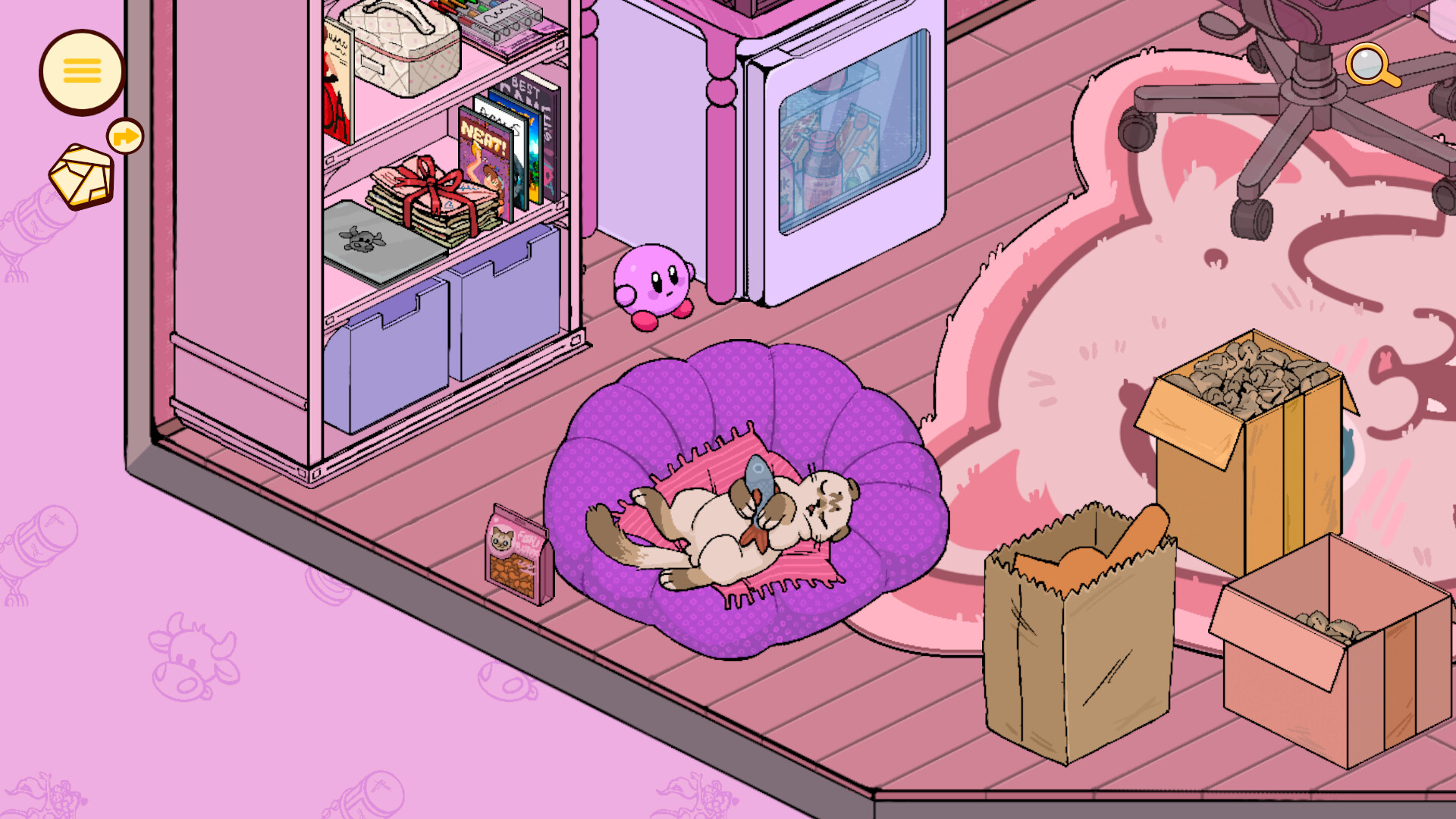
Comfortable controls matter more in Neat! than in games with big fail states—because you will spend hours picking up tiny objects, rotating them, and nudging camera angles until a shelf feels right. This page covers how to think about mouse and keyboard, partial controller support, and camera habits on desktop and Steam Deck Verified hardware. Pair it with Getting Started for day-one mindset, and Tips once the inputs feel natural.
Korova Games designed Neat! as a tactile organizing fantasy: grab, inspect, place, repeat. The best “control tip” is still soft hands and a stable view. If your wrist or eyes tire, pause between locations—the campaign is only about 3.5–4 hours, so there is no rush.
Mouse and keyboard (primary feel)
Most players will be happiest with a mouse for precision placement. Typical cozy-organizer habits that translate well here:
- Point and click to select or pick up objects.
- Drag to move items across surfaces, into drawers, or onto shelves.
- Scroll / dedicated keys (as shown in-game) to rotate held objects before placing them.
- Right-click or cancel to put an item back down when a placement feels wrong.
- Keyboard modifiers may help with camera reset, zoom, or menu access—check the in-game prompt overlay on your first launch and rebind in Steam if needed.
Because layouts are judged by feel rather than a single correct grid, precision matters for your satisfaction more than for a hidden scoring board. If an object keeps clipping or refusing a spot, rotate it, clear neighboring clutter, then try again. Frustration usually means the camera is fighting you, not that you “failed” the puzzle.
Desktop comfort checklist
- Sit so your forearm is supported; you will click a lot in the konbini and kitchen spaces.
- Raise UI scale or resolution if tiny labels are hard to read—story lives in notes and tapes.
- Use a mouse with a reliable scroll wheel for rotation-heavy moments.
- Keep Steam’s overlay screenshot key handy; layouts you love help later achievement sweeps—see Achievements.
- Enable Steam Cloud if you bounce between a desktop and Deck.
Partial controller support
Neat! includes partial controller support. That phrase matters: expect a playable stick-and-button experience, not necessarily feature parity with a finely tuned twin-stick shooter. On a couch or Deck, controllers shine for camera pans and coarse moves; fiddly micro-adjustments may still feel better with a trackpad or mouse.
Practical controller advice:
- Prefer Steam Input community layouts if the default mapping feels awkward.
- Map grab / confirm to a face button you can mash without strain.
- Put rotate on bumpers or a dedicated face button so you are not opening menus mid-shelf.
- Keep camera on the right stick with a gentle sensitivity; high accel makes tiny shelf work miserable.
- Use the Steam Deck trackpads as a mouse hybrid when a shelf needs pixel-level nudges.
If a location feels controller-hostile (dense desks, small stationery piles), switch to trackpad or plug in a mouse for that room, then return to controller for larger outdoor or floor-level sorting. The Locations page notes which spaces tend to be visually busy.
Steam Deck Verified tips
Neat! is Steam Deck Verified, which is excellent news for a cozy evening game. Still:
- Start on default verified settings, then lower TDP only if you want longer battery during chill sessions.
- Use community control profiles that blend stick camera with trackpad cursor.
- Brighten the screen slightly in dark “haunted” or night-shift konbini vibes so notes stay readable.
- Dock with a Bluetooth mouse if you plan a long stationery-heavy session (looking at you, achievement hunters chasing Stationery Addict energy).
For hardware baselines, see System requirements. For whether Deck is a good overall way to experience the story, the Review includes a Deck verdict.
Camera habits that save your patience
Most organizing friction is camera friction. Build these habits early:
- Frame the work surface before you pick anything up. If you cannot see the back of a shelf, you will mis-place items.
- Zoom with intention. Too far out and objects become toys; too close and you lose relational layout.
- Orbit, then place. Rotate the view so gravity and shelf edges make sense, then commit the object.
- Reset when lost. If the camera clips through foliage in the garden or stacks in the library, reset to a known angle instead of fighting it.
- Work in zones. Clear a table completely, then move to the floor, then to wall storage—see Tips for zone strategies.
Outdoor spaces (the grandmother’s garden) ask for wider framing. Desk-heavy spaces (VTuber streaming room) ask for tighter framing and more rotation. The “haunted” living room and hermit room reward slow pans so you do not miss story props tucked behind furniture.
Accessibility and session health
Neat! is gentle mechanically, but repetitive fine motor work can still strain hands:
- Take a stretch break between locations—eight spaces is a natural break map.
- Alternate mouse and Deck trackpad if one input tires you.
- Lower look sensitivity if motion makes you woozy during orbit.
- Use headphones; tapes and ambience are part of the narrative delivery.
There is no multiplayer pressure and no raid timer. Molly’s startup can wait five minutes while you shake out your wrists.
Troubleshooting awkward inputs
- Object won’t place: rotate, clear the landing zone, check you are targeting the intended surface.
- Camera jitter on Deck: reduce gyro if enabled; rely on stick + trackpad.
- Tiny text: bump scaling; story text is not optional flavor.
- Controller deadzones: widen slightly in Steam Input if micro-drifts shove items.
- Cloud conflict: when switching devices, fully exit the game so Steam Cloud can sync before you boot the other machine.
Where to go next
Once inputs feel invisible, return to play. Use Getting Started if you still want day-one structure, Tips for organizing philosophy, and the Walkthrough when you are ready for a spoiler-aware path through all eight jobs. Keep Updates bookmarked if a patch tweaks input or Deck profiles after launch—see also Launch notes.
Good controls disappear. When you catch yourself thinking about a client’s letter instead of your wrist angle, you have set Neat! up the right way.
Frequently Asked Questions
Quick answers about Neat!, Molly, and this fan wiki.
Is mouse and keyboard the best way to play Neat!?
For precise shelf work, yes for most players. Controllers and Deck trackpads are viable, especially with Steam Input tweaks, but fiddly stationery piles still favor a mouse.
What does partial controller support mean?
You can play with a controller, but expect to adjust bindings and possibly mix in trackpad or mouse for dense micro-placement moments.
Does Neat! run well on Steam Deck?
It is Steam Deck Verified. Start with verified defaults, use a hybrid stick/trackpad layout, and dock a mouse if a location feels too fiddly.
Any quick camera tip?
Frame the surface first, orbit until edges make sense, then place. Reset the view when it clips instead of forcing a bad angle.
Where can I check PC requirements?
See the System requirements tool page, and skim Launch notes for day-one Steam release context.