
Neat! on Steam Deck
Verified status, comfort settings, Cloud sync, and session planning for Molly's cozy handheld runs.
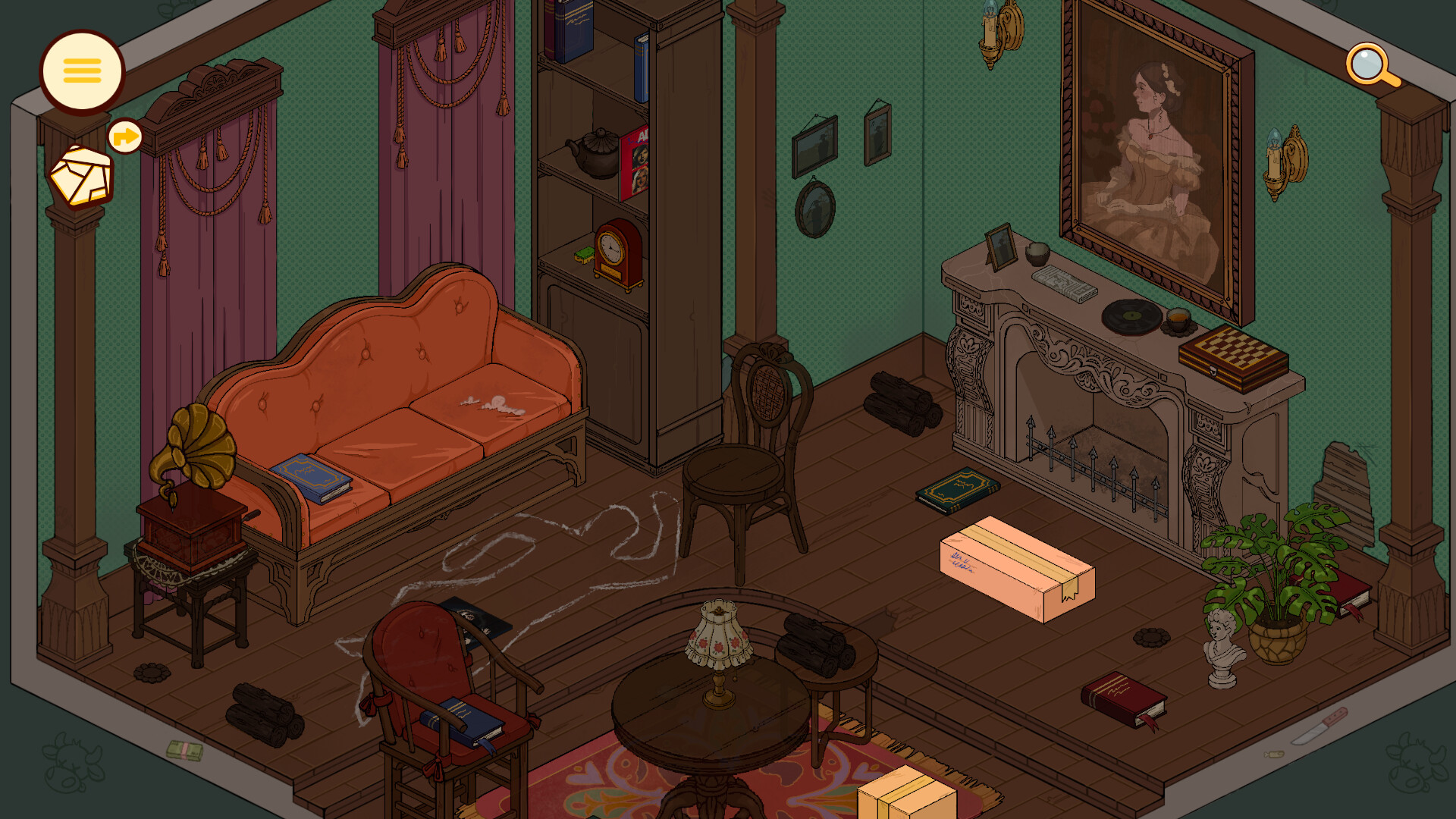
Neat! is Steam Deck Verified. Korova Games shipped the cozy single-player organizer on Steam for Windows and macOS on 14 September 2026, and Valve’s Deck Verified news landed on 13 September 2026 — the day before launch. This page is the handheld-focused companion to System Requirements: what Verified means here, how to set comfort options, how long a Deck session usually lasts, and how Steam Cloud keeps Molly’s progress aligned between Deck and PC.
Neat! is an isometric tidy-up narrative with object storytelling across eight locations, roughly 3.5 to 4 hours of play, 24 achievements, partial controller support, and a launch price context around $7.99. It is not a heavy action title. That makes Deck a natural fit — short rooms, calm pacing, and a campaign you can finish over a few evenings or one long train ride — as long as UI scale, grips, and brightness feel right in your hands.
What Steam Deck Verified means for Neat!
Verified is Valve’s checklist result for default Deck play: expected display behavior, a usable control path, and performance that meets the Verified bar on Deck hardware. Practical takeaways for Neat!:
- Install from Steam on Deck the same way you would on desktop.
- Expect the default layout to be playable without hunting for a community config on day one.
- Remember the store still lists partial controller support overall. Verified helps on Deck; it does not rewrite every desktop menu into a perfect gamepad flow on every PC.
- Keep Steam Cloud enabled if you also play on a Windows or Mac machine.
- After a SteamOS, Proton, or big Deck UI update, relaunch once and re-check scale, brightness, and grip comfort.
Verified is not a promise that extreme TDP caps, custom overlays, or third-party launchers will look identical. If something feels off after a platform change, confirm the live store status, then skim Launch Notes and official channels on the Links hub.
Comfort settings before the first room
Spend two minutes in Quick Access before you start organizing:
- Brightness — cozy interiors read better when you are not squinting in a dark commute or blasting white UI at midnight.
- UI / scaling — if text or interact prompts feel tiny, raise Deck display scaling or in-Steam accessibility helpers before blaming the game.
- Refresh rate and TDP — start at defaults. Neat!‘s isometric presentation rarely needs aggressive overclocks; lower TDP only after a room or two if battery matters more than peak smoothness.
- Audio — Molly’s spaces reward soft environmental detail. Set a comfortable media volume and avoid drowning object cues under system sounds.
- Grip and posture — Verified does not fix hand fatigue. Take breaks between locations; the campaign length supports bite-sized sessions.
For input specifics, remap notes, and desktop-versus-Deck habits, open Controls. For broader comfort strategies that are not Deck-only, see Accessibility.
Controls cross-link (partial support, still Deck-friendly)
Steam lists partial controller support. On Deck that usually means:
- Movement, camera, and most tidy interactions should feel natural on the official layout.
- A few precision clicks or edge-case prompts may still feel mouse-first if you ever dock to a desktop window — less of an issue in pure handheld mode.
- Community layouts can help, but try the default Verified path first so you know what Korova and Valve already validated.
Do not invent button legends that are not documented. Learn the loop in Getting Started, then refine binds only if a specific action feels awkward after one full location.
Battery and play-session length
A typical Neat! campaign sits around 3.5 to 4 hours. On Deck that maps cleanly to:
- One long evening if you want the whole story in a sitting
- Two or three shorter sessions of roughly 60–90 minutes if you clear one or two locations at a time
- Achievement cleanup as a light second pass rather than a second full campaign length for most players
Because the game is cozy and isometric rather than GPU-heavy, battery life is usually friendlier than action titles at the same brightness. Still, treat battery claims as personal: brightness, Wi-Fi downloads, and TDP change the math. If you are mid-room and the battery warning appears, save, sync Cloud, and resume later — Neat! rewards calm pauses more than rushed clears.
Steam Cloud between Deck and PC
Steam Cloud is supported. Good habits:
- Enable Cloud on both Deck and your PC / Mac install.
- Exit to the Steam UI cleanly so uploads finish.
- Wait for sync icons to clear before you start the game on the other device.
- Avoid starting the same save on two machines at once.
Cloud is the reason Deck Verified and desktop play complement each other: commute on Deck, finish a tricky shelf on a monitor, then return to handheld without losing Molly’s progress. If a save seems missing, do not panic-delete local files — wait, relaunch Steam, and confirm sync before troubleshooting further.
Performance expectations for a cozy isometric game
Neat! is not trying to be a ray-traced showcase. On Deck you should expect:
- Stable, comfortable pacing at default settings for a Verified cozy title
- More sensitivity to UI readability and input comfort than to ultra texture packs
- Occasional hitching only if the device is thermally limited, installing shaders in the background, or fighting a full disk
If frames feel soft, lower brightness and any available quality toggles before assuming a broken build. Compare your desktop cousins against System Requirements if you also own a low-end Windows laptop — Deck Verified does not change the published Windows / macOS tables.
Troubleshooting: UI scale, grip, and handheld quirks
| Symptom | Try this |
|---|---|
| Text or prompts too small | Raise Deck scaling / Quick Access display options, then retest in a quiet room |
| Hands tire mid-location | Shorten sessions; adjust grip angle; take a break between spaces |
| Controls feel imprecise | Re-open the official layout; check Controls; avoid stacking conflicting community configs |
| Cloud save missing | Wait for sync; do not force dual launches; confirm Cloud is enabled on both devices |
| Soft hitch after OS update | Relaunch once; verify game files; skim Launch Notes and the Updates Hub |
| Unsure about install size | Re-check storage notes on System Requirements |
For comfort strategies that mix OS-level tools with honest Steam feature notes, continue on Accessibility.
Suggested Deck-first route
- Confirm Verified / install path and skim this page.
- Cross-check hardware context on System Requirements.
- Set brightness, scale, and Cloud.
- Learn the loop with Getting Started and Controls.
- Play locations at your pace; use guides only when stuck.
- Return to Launch Notes if launch-week store or Deck messaging changes.
How this page fits the wiki
- Tools Hub — setup home
- System Requirements — full Windows / macOS / Deck tables
- Accessibility — comfort strategies without invented toggles
- Controls — input detail
- Getting Started — first-hour onboarding
- Launch Notes — Sep 2026 release context
Neat! on Deck is meant to feel like a warm handheld tidy session — Verified so you can install with confidence, short enough to finish, and Cloud-backed so Molly’s story can move with you.
Frequently Asked Questions
Quick answers about Neat!, Molly, and this fan wiki.
Is Neat! Steam Deck Verified?
Yes. Valve announced Steam Deck Verified on 13 September 2026, and Neat! launched on Steam the next day (14 September 2026).
How long is a Deck playthrough?
Most players should plan about 3.5 to 4 hours for the campaign, which splits cleanly into a few handheld sessions plus optional achievement cleanup.
Does Steam Cloud work between Deck and PC?
Yes. Enable Cloud on both devices, exit cleanly, and wait for sync before switching machines.
Does Verified mean full controller support everywhere?
No. Neat! remains listed with partial controller support. Deck Verified covers the handheld default path; see Controls for input notes.
UI text looks small on Deck — what should I change first?
Adjust Steam Deck display scaling and brightness in Quick Access, then retest. More comfort ideas live on Accessibility.
Where do I read PC and Mac specs?
Use the full tables on System Requirements, then return here for handheld-focused tips.